
Most asset types can have power sources set for them in the platform, but racks and power meters work differently. How is power rolled up for racks and power meters with regards to the power path for equipment?
0
1 Answer
0
Best Answer
Power meters and racks don't have power associations the same way other assets do in the platform. Below are outlines of associating power for those assets. Additional information regarding the notes below can be found here: https://docs.hyperviewhq.com/product/asset-management/topics/asset-properties.html#power
Calculating or Associating Rack Power
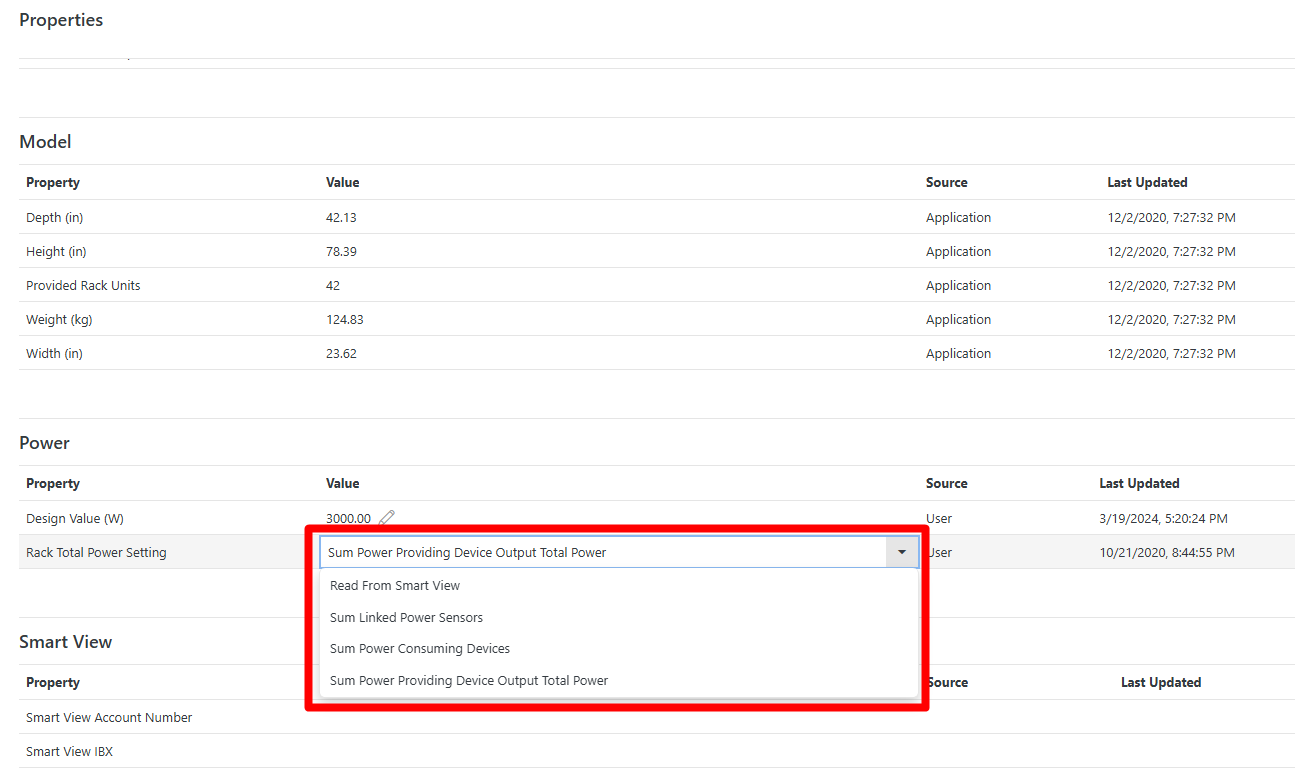
Hyperview can automatically calculate the power values for a rack based on the configuration options you have selected for Power under the Information > Properties page for the rack. Under the Power properties section you can select to sum power from; linked power sensors, power consuming devices, or power providing device output total power. The option you select prefers the data source for the power. If you have RPDUs in the rack which are monitored, then selecting the power providing device output total power option will automatically roll up the output total power sensors from those devices to the rack to calculate rack power. If you have power consuming IT devices in the rack, then selecting the power consuming devices option will roll up the power consumption sensors for to calculate rack power. If you have power meters or other power providing devices monitoring the power for the rack, then you can select the linked power sensors option to roll up the power values from those linked sensors.
Associating Power Meter Power
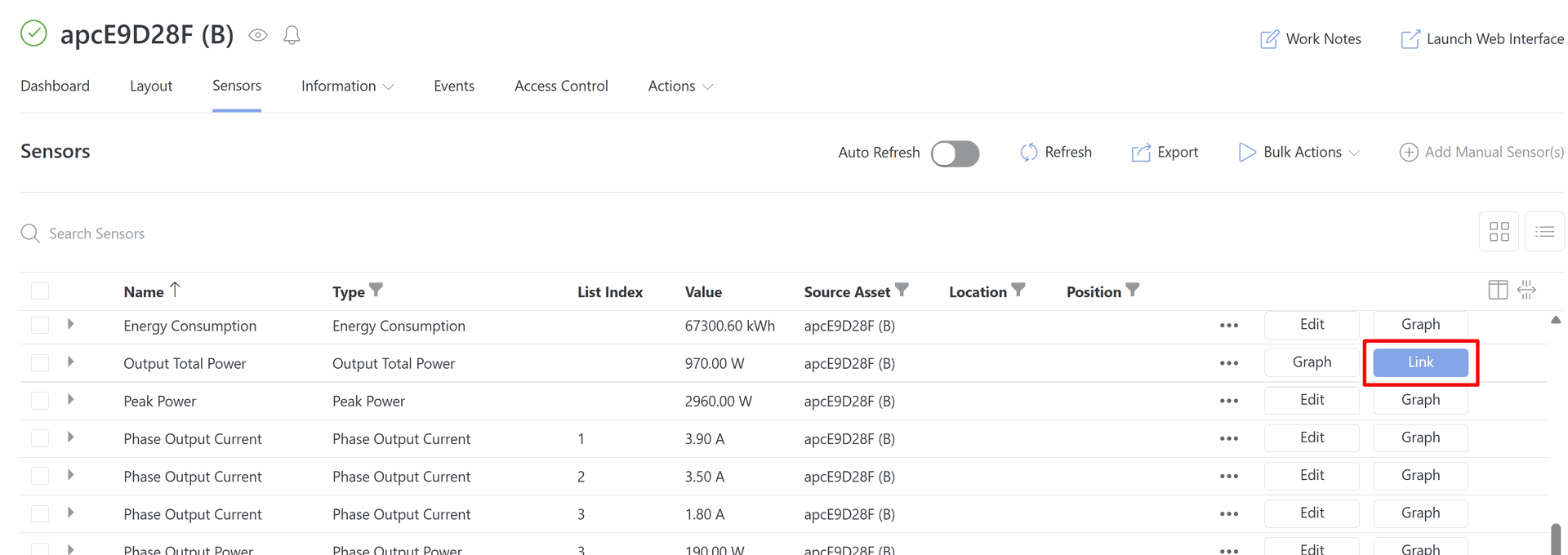
Power meters specifically do not have a power source option as they are meant to serve as the power monitoring endpoint for other device types. Once the power meter is monitoring or calculating the output total power, navigate to the Information > Sensors List page for the power meter and click the Link button for the power sensor. Link that power sensor to the corresponding asset where the power is being read for. The linked asset can be a rack, a location, or any other asset in the platform. Once linked, the power values from the power meter will serve as the power sensors for the asset you have linked it to.
Setting up Power Paths
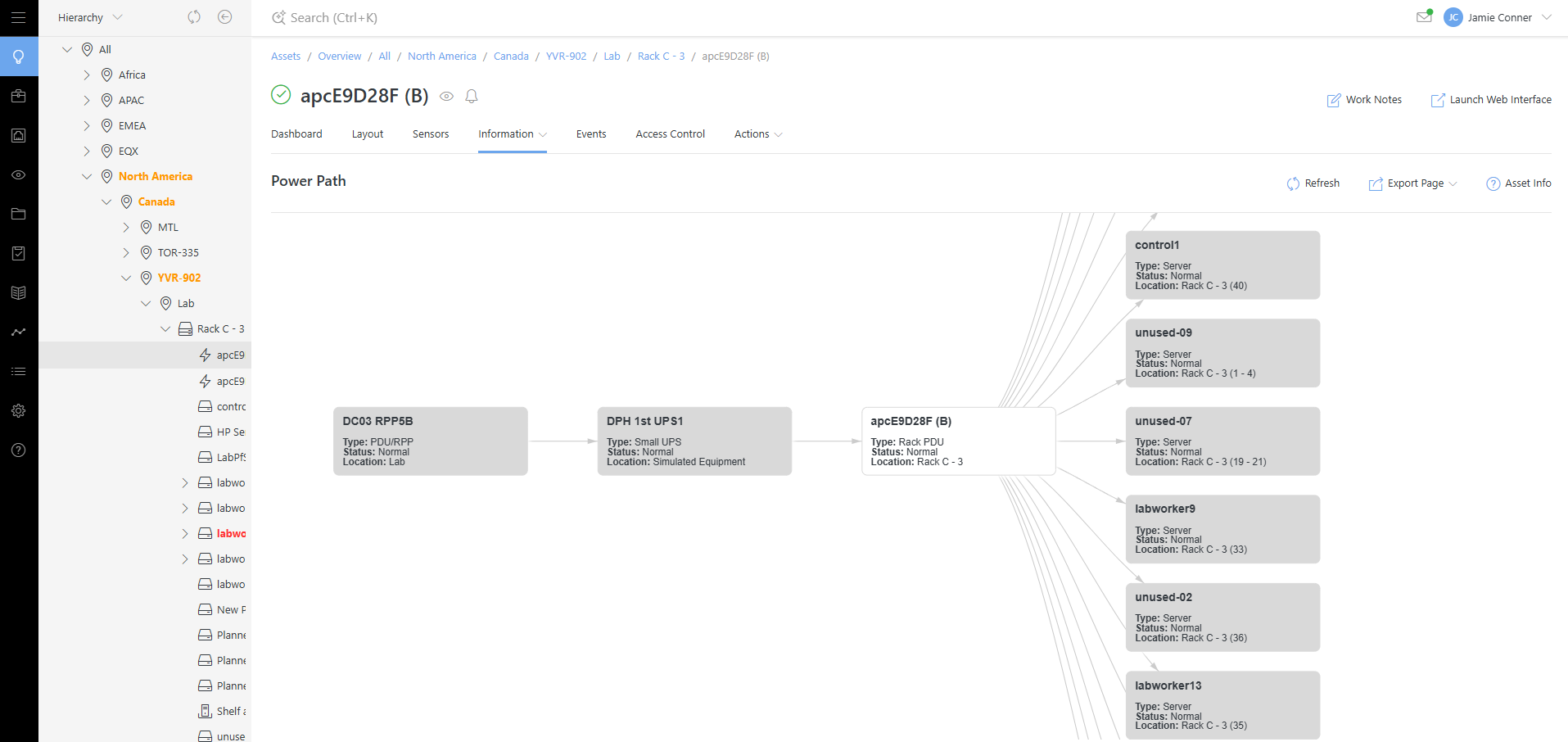
Create power paths from the assets Information > Power page. From there click the Add power source button and select the power source for the asset. This method works for all asset types except the two mentioned above (rack and power meters). Racks calculate power based on the power sum property selected for them, and power meter sensors should be linked to the asset they are metering power for. A general setup may look as follows, where a power meter can be linked to any asset in the power path to provide the power readings for that asset:
Importing Power Paths
You can also bulk import power paths with the HVCLI tool. The tool allows you to feed a CSV file with the power connection information (asset ID, source asset ID, asset type, and connector index) to the system and load them in bulk. The tool is available here, and if you need assistance performing a bulk import please let us know.
https://github.com/HyperviewHQ/hvcli